The listing guide
How to list your gear for rent.
Rent it out, sell it, or offer both. Follow the steps from your first listing to earnings you can spend or withdraw.
Before you start: Be 18+ · Own the gear · Complete your account setup
Swipe for next step ↔
-
Create your account
Sign up for Rentul (18+), complete your profile, choose your campus and verify your email. Follow any payout setup prompt shown for your account.
-
Add photos of your gear
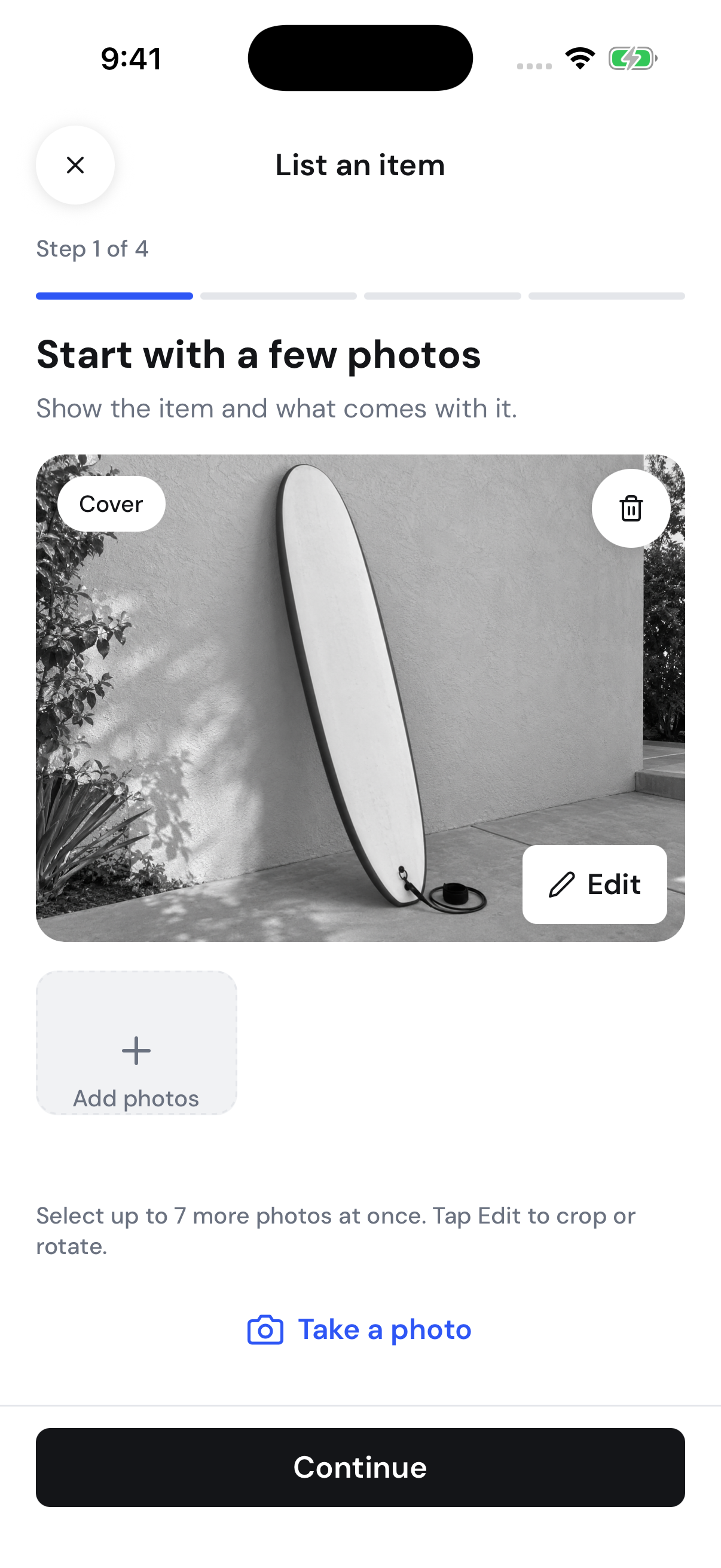
In Discover, tap + to list an item. Add clear photos of the item, its accessories and any wear, then choose a cover photo.
-
Tell people what it is
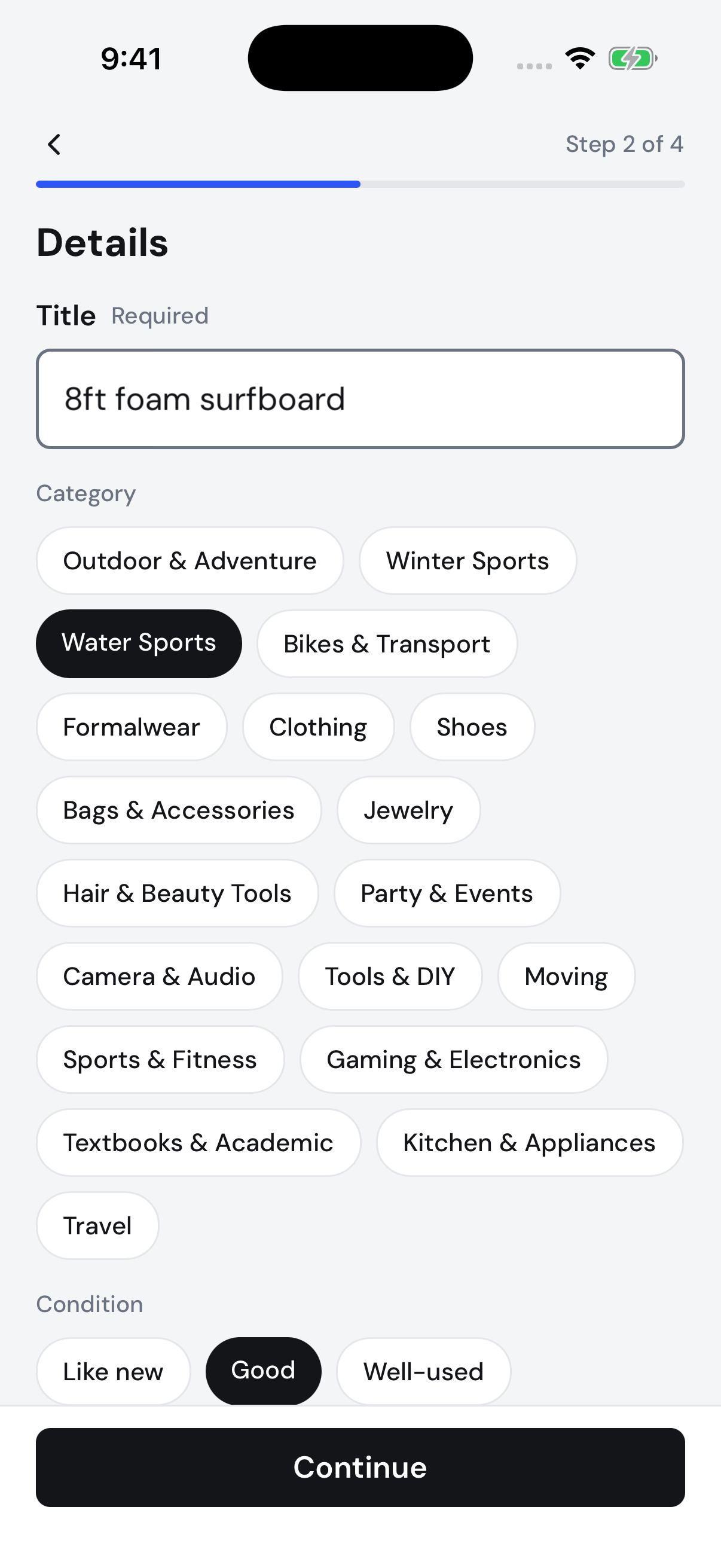
Add a title, category, condition and description. Explain what is included and anything someone needs to know before using it.
-
Choose Rent, Sell or Both
Set your own prices. Offer daily rentals, a flat quarter (12 weeks), a flat semester (16 weeks), a sale price, or a combination.
-
Choose how people book
Use Wait for approval to review requests, or choose Book instantly. For requests, the renter pays after you approve; approval alone does not collect payment.
-
Publish and share your listing
Tap Publish listing, then share the listing with friends or your club. Keep prices and availability current, and use in-app chat to arrange pickup.
-
Complete the handoff and earn
At pickup, inspect the item together and verify the renter's pickup code in Rentul. New prepaid bookings credit earnings after fees to pending Rentul Balance. Rentals stay pending through their release date and payment clearance.
-
Use your earnings or withdraw
Open Profile, then Rentul Balance. Once earnings are available, use them for eligible bookings or tap Withdraw to bank. Complete Stripe payout setup when prompted and track the withdrawal in Balance activity.
With Rentul Balance enabled for your account, you can list before connecting a bank account. If the app asks you to set up Stripe payouts first, complete that step to continue.
See example listing screens
Swipe for next step ↔
Add clear photos
Describe your item
Your listing is live
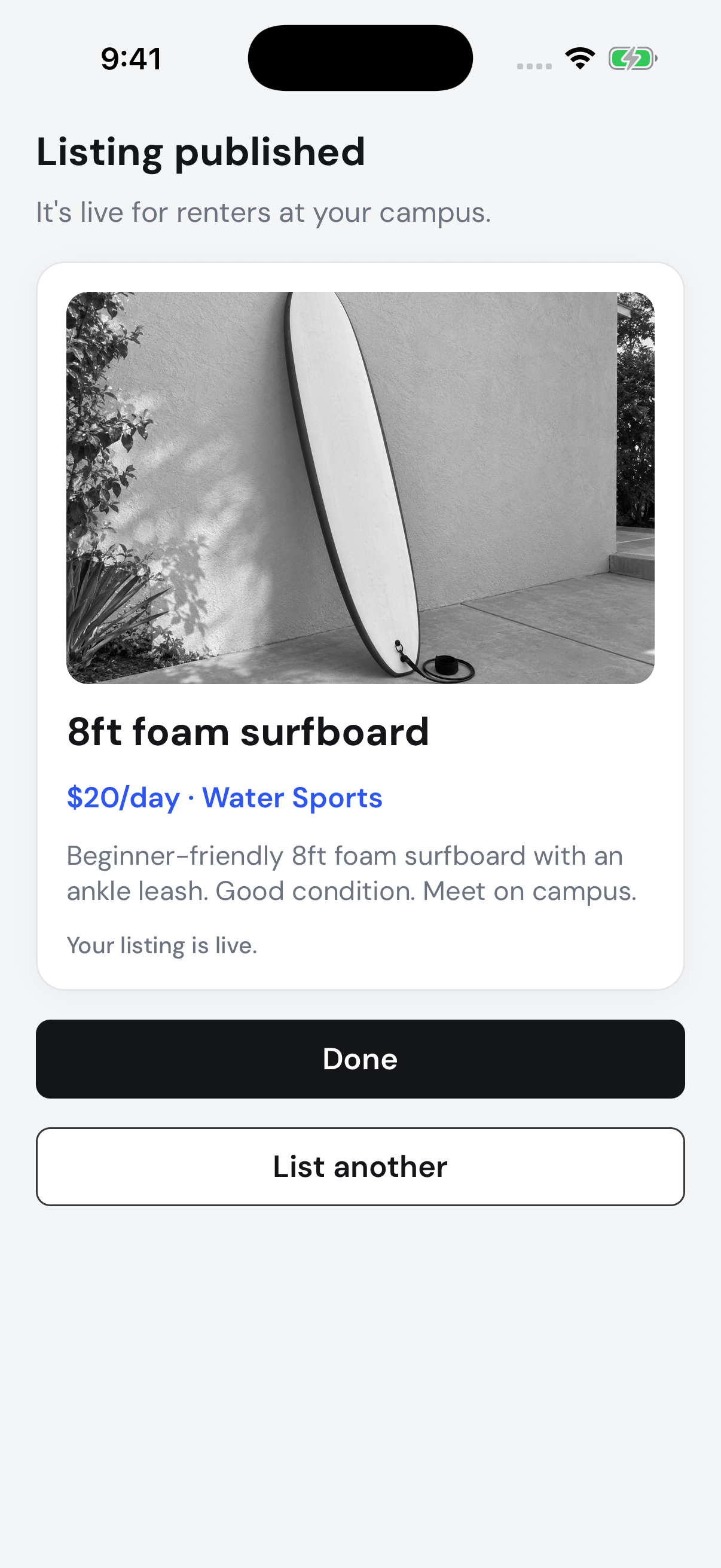
Example listing and prices, not guaranteed earnings. Screens may vary with your app version.
Someone needs what you already own.
Get Rentul on the App StoreReady to list?
Do I need a bank account before listing?
When Rentul Balance is enabled for your account, you can list before connecting a bank account. Complete Stripe payout setup when you want to withdraw available earnings. If your account shows a payout setup prompt before listing, follow it to continue.
How do I get my money?
Open Profile, then Rentul Balance to see pending and available earnings. Only available earnings can be spent on eligible bookings or withdrawn. Tap Withdraw to bank and complete any Stripe verification or bank setup requested. Track progress in Balance activity; requesting a withdrawal does not mean it has reached your bank.
How much can I earn?
You choose your prices. Your proceeds are reduced by the service fees shown in the app and can change with refunds or adjustments. Listing an item does not guarantee bookings or earnings; clear photos, useful details and realistic prices help people decide.
Why are my earnings pending?
Payment is collected before pickup for new prepaid bookings, but that does not make your earnings immediately available. Release requires verified pickup and payment clearance, and rental earnings remain pending through the rental release date. Refunds, disputes or account holds can affect availability. Earlier bookings and Stripe earnings keep their existing payment arrangements.
Can I approve renters before they pay?
Yes. Choose Wait for approval when listing. The renter pays after you approve, and the booking is confirmed only after payment succeeds. Choose Book instantly if you prefer renters to reserve and pay without waiting for approval.
How should I photograph and describe my gear?
Add at least one clear photo, choose a cover, and show the item's actual condition. Include accessories, known wear and anything the renter needs to use it. Keep the price and availability accurate.
What can I list?
List items you own and have the legal right to rent. Review the listing rules in the Terms of Service before publishing. Do not list unsafe, recalled or prohibited items.